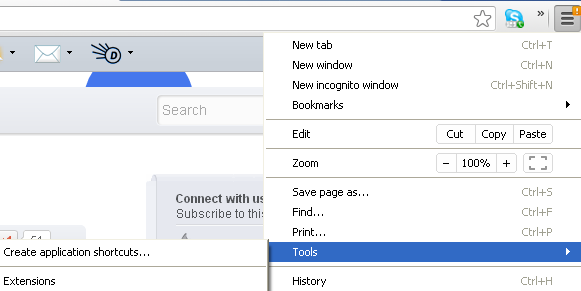
Poll Everywhere is now available to use with the Chrome web browser and Google Drive slides. It works on Mac and Windows computers. To learn more, go to https://www.polleverywhere.com/app/google-slides
The Poll Everywhere extension is available for Google Chrome. When you open Google Drive slides, you will see Poll Everywhere in the menu.
When you click to insert a poll, you have several choices for types of polls. After you are done, click on the Present button. If the poll is locked, mouse over to the right side of the web browser and click the lock icon to unlock the poll.
When the poll participants see the poll, they go to their mobile phone messages app and enter the number 22333 in the "send to" window. Next the participants enter the name of the poll. In my example, they enter JEANNESEWELL. Finally, the participant answers the poll, entering A, B, or other choices provided.
The poll results display on the presenters slide.
The Georgia College nurse educator students have been working with the College of Health Sciences faculty teaching SMART Notebook software. The 15th edition of the software has a great built-in polling feature for mobile devices. The downside of the software is that it is a subscription. It must be installed on the presenter's computer (for the design) and on the classroom podium computer for the presentation (unless the presenter was using a laptop with the software to present).
SMART Notebook allows participants to use any type of computer with a web browser to answer a poll. However, Google Slides and Poll Everywhere limit the response to polls using the messaging app.
The Poll Everywhere extension is available for Google Chrome. When you open Google Drive slides, you will see Poll Everywhere in the menu.
When you click to insert a poll, you have several choices for types of polls. After you are done, click on the Present button. If the poll is locked, mouse over to the right side of the web browser and click the lock icon to unlock the poll.
When the poll participants see the poll, they go to their mobile phone messages app and enter the number 22333 in the "send to" window. Next the participants enter the name of the poll. In my example, they enter JEANNESEWELL. Finally, the participant answers the poll, entering A, B, or other choices provided.
The poll results display on the presenters slide.
The Georgia College nurse educator students have been working with the College of Health Sciences faculty teaching SMART Notebook software. The 15th edition of the software has a great built-in polling feature for mobile devices. The downside of the software is that it is a subscription. It must be installed on the presenter's computer (for the design) and on the classroom podium computer for the presentation (unless the presenter was using a laptop with the software to present).
SMART Notebook allows participants to use any type of computer with a web browser to answer a poll. However, Google Slides and Poll Everywhere limit the response to polls using the messaging app.