Showing posts with label Google Drive. Show all posts

Tuesday, June 30, 2015

Flash Card Creator - Flippity

I found a easy to use flashcard creator that uses a Google spreadsheet.  All you have to do is to have a Google Drive account and download the template.  The website is http://flippity.net/

You can view a demo by clicking on the URL below. A screenshot shows the appearance.  You have a choice of colors for the flashcard and can even include videos. 

http://www.flippity.net/fc.asp?k=18coyHBMERpWz-hz_mUTZc-qPxHRlsRh0wyloYN0JSVg

Saturday, May 30, 2015

Google Sheets -- Mapping Sheets App

I read a very interesting article about the Mapping Sheets App for Google Drive Sheets.  Essentially, you can input a list of addresses into worksheet cells and then the Mapping App will display the addresses on a map.  I can see the app very useful in a variety of education settings.  For example, in nursing, you could input the addresses of hospitals, healthcare providers, diagnostic testing centers and pharmacies to display for a community assessment.  The app is very easy to use.  The first thing you want to do is to open a Google Sheets worksheet.  Then select Add-ons > Get Add-ons from the menu.  Search for Mapping Sheets.  Afterwards, activate the Mapping Sheets Add-on.  Afterwards, the Mapping Sheets menu will display on the right side of the window.  You can click a demo video and/or download sample data. 
A YouTube video displaying how the app works is online and displayed below.  


Sunday, November 3, 2013

APA Templates for Word Processors (Mac - Pages & Word, OpenOffice, Google Drive Docs)

If you need to write a paper that uses APA 6th style, consider beginning with a pre-designed template. Remember that you must use the APA manual to verify that the template is designed correctly.

You can also configure the word processor by editing the default style. Any well-designed template can save lots of time, so that you can concentrate on the document content.
  • Microsoft Word for the Mac - use the same website as noted for Apple iWork Pages.  
  • Apache OpenOffice - http://templates.openoffice.org/en/template/apa-6th-edition-paper-template-1
    Note: There are a couple of errors on the template that are easily corrected.  First the title page does not show a course name, instructor, or due date.  It should show the title of the paper, the author name, and the institutional affiliation (APA, 2011, p. 23).
    The first paragraph of the abstract should NOT be indented.

    The paragraph headings need to be edited.  See page 62 of the APA manual.
  • Google Drive Docs - there are many templates, but I was unable to locate one correct formatting.  One of the limitations of Google Docs is that the page header is the same for all pages. 

Monday, October 7, 2013

Syncing File Between Your Computer and the Cloud

I have been using Dropbox as a favorite cloud storage app for several years.  It is a fantastic backup and shared files solution.  My colleagues also use it to share and store committee files that are not subject to FERPA (student identification privacy) and HIPAA (health information privacy) protection.  I also use Google Drive and SkyDrive as backup solutions.  What I had overlooked is that SkyDrive is a downloadable app for personal computers and mobile devices that allows files to be synced, like Dropbox and Google Drive.

If you have files that you do not want to lose, consider discovering a backup solution that provides file syncing. 

Create Flashcards Using Google Spreadsheets

Students in the informatics courses I teach often tell me that the learning informatics vocabulary is like learning a foreign language.  It is one reason that I use gaming tools that include flash cards for each chapter lesson.  One learning activity instructors might consider is for students to create a set of flashcards using the key words in a chapter with Google spreadsheets.  Sheets is the term used for spreadsheets in Google Drive.  Flippity (http://flippity.net/) is an easy to use tool for learners to use.  The only downsides for its use are that the learner must have a Google account and the fact that the tool is advertisement supported.

The tool is easy to use.  You open the flashcard template in your Google Drive, modify it with the key words and definitions, and then share it on the web.  Creating flashcards should take only a few minutes!  Flippity is an easy resource to use.

Sunday, September 22, 2013

Ten Creative Cloud Storage Solutions

Read a great article by Saiket Basu this morning about ways to use cloud storage sources at http://www.makeuseof.com/tag/10-ways-to-use-your-cloud-storage-that-you-may-not-have-thought-of/

The creative ways identified in the article are using cloud storage for:

  1. Family history vault with family interviews
  2. Saving gmail attachments to Google Drive
  3. Keeping voice memos in Dropbox using DropVox
     (a $1.99 voice memo recording app)
  4. Embedding video with Google Drive - includes a nice short tutorial
  5. Using Google Drive as a file previewer
  6. Using Dropbox as a wall paper repository with Desktoppr (repository of free high-quality wallpapers) that integrates with Dropbox
  7. Designing video quizzes with Google Drive
  8. Sharing quick Excel surveys with SkyDrive
  9. Saving scanned digital copies of print resources 
  10. Storing favorite infographics

Saturday, September 21, 2013

Quickoffice Free App for iOS and Android Devices

Quickoffice is now a free office suite app for iOS and Android devices.  According to the app store description, you can create and edit Word, Excel, and PowerPoint files and save them to your Google Drive.  You can also use it to access your Google Drive, open and view PDF files, attach files to emails, and share files.  On iOS devices you can also zip files.


In order to use Quickoffice, you have to have Internet access.  All files are stored in your Google Drive account.  Quickoffice offers up to  15 GB free storage. 

For more information go to https://support.google.com/quickoffice/answer/3381968?hl=en
http://lifehacker.com/quickoffice-now-free-on-android-and-ios-with-free-googl-1350259070
http://howto.cnet.com/8301-11310_39-57603769-285/get-10gb-extra-space-on-google-drive-for-linking-with-quickoffice/

When you first open the app, you are prompted to login to your Google account. You have to accept the app managing your Google Drive files, viewing your email address, and basic information about your Google account.

The next window provides you with four tutorials:
  • Explore a budget spreadsheet (two sample spreadsheets - no tutorial)
  • Get started with Documents.docx
  • Get stared with Presentations
  • Get started with Quickoffice.pdf
If you use Google Drive, QuickOffice may be a perfect mobile solution.

PS - Quickoffice is also an extension for the Chrome web browser, although it is still a beta product. The extension differs from the app.  Chrome extension allows you to view any Microsoft Office files, not edit the files. 

Sunday, August 25, 2013

Sharing Large Files with Others

TC Geeks has an article on sharing large files with others at http://www.tcgeeks.com/how-to-share-large-files-in-the-cloud/.

Two of the cloud resources mentioned were Dropbox and Evernote.  In the Georgia College School of Nursing, many of the committees use Dropbox for sharing information that has no references to students.  The advantage to Dropbox is that it works on all mobile devices as well as Macs and Windows computers.  Evernote is an excellent resource. I have written several blogs about the fantastic features available in Evernote. 

Two cloud resources that were not mentioned are SkyDrive and Google Drive.  One of my research partners and I use SkyDrive for a manuscript we are writing.  The reason is that we use EndNote citation software and we want to maintain all of the formatting.  SkyDrive allows users to view shared items using a URL; however, the user must sign into SkyDrive to make edits.  Google Drive also allows cloud sharing.  Like SkyDrive, users can set up preferences to allow others to view or make edits to shared files.

Friday, February 15, 2013

Google Docs Sharing Issue

A couple of Google docs sharing advertisements prompted me to reflect on an issue that I experienced Wednesday.  Flor and I were working on writing a manuscript we plan to submit for publication.  I had created a Google word processing document from Word, which we were both editing.  The Google doc was in my Google Drive folder.

All of a sudden, I could not edit.  What happened is that my key presses were typing the wrong letters. We were sitting side-by-side, so she could see what was happening.  We had used Google sharing a few years ago.  The problems at that time related to the time lag.  Time lag was not a problem this time.  The inability to type correct letters was.  I need to "Google" the issue to explore further.

Sunday, February 3, 2013

Google Drive Forms and Shared Collaboration

Google Drive forms now allows for collaborative development!  When you first open the form with the new feature the window shown below pops up.  You can click on the Learn more button for help or go to http://support.google.com/drive/bin/answer.py?hl=en&answer=87809&topic=1360904&ctx=topic
 Google forms is a serious contender with database software because creating a form is so intuitive and the output of the form is stored in a spreadsheet or comma separated value file.   Google forms provides seven  types of text entry without having to use database tools or the necessity of creating lookup tables as noted below:


  • Text — respondents provide short answers
  • Paragraph text — respondents provide longer answers
  • Multiple choice — respondents select one option from among several
  • Check boxes — respondents select as many options as they’d like
  • Choose from a list — respondents select one option from a drop-down menu
  • Scale — respondents rank something along a scale of numbers (e.g., from 1 to 5)
  • Grid — respondents select a point from a two-dimensional grid
  •  
    Just as in other Google Drive apps, you can share the URL with specified others or make visible to everyone.

    Google Drive Forms may be a solution that nurses use when working on research and transformation projects that require users to complete a questionnaire. Since the output is stored in a spreadsheet the data can be prepared for statistical analysis.


    Sunday, January 27, 2013

    Gmail and Google Drive

    I was reading an article about Gmail and Google Drive that shared interesting information about how users can now share LARGE files using Google Drive.  If you use the combination, the attached file size limit is 10 GB!  The standard file limit for attachments with gmail is 25 MB.  Of course, to use the feature, you have to have a Google Drive account.

    There was just one thing that confused me and that was the graphic showing Google Drive as a choice in gmail (see below) because it was not a visible choice with my gmail compose window.
    With a little detective work, I realized that the Google Drive icon does not appear until you mouse over the plus sign (+) to the right of the paperclip icon (see below).
    I am using the new gmail "look" that allows you to have many small compose menus open simultaneously.  Take a few moments to explore some of the new gmail options, if you have not already done so.

    Saturday, January 12, 2013

    Google Drive Spreadsheet - Part 1


    Google Drive spreadsheet (http://drive.google.com) is a popular choice for a cloud solution because of the many features common to desktop solutions and the ability to share collaborative editing.  Google Drive is available for the Window OS X, Mac OS X, iPad, and Android mobile devices.  An alternative cloud spreadsheet solution, SkyDrive, is available for users who have Microsoft Office desktop or Microsoft Office 365, a cloud solution.  SkyDrive is available for Mac and Windows mobile devices.  However, for the purpose of this blog, discussion of cloud-based spreadsheet software is limited to Google Drive because of its non-commercial nature, popularity and robust features.

    Google Drive users get 5 GB of free storage for all Google Doc files, including spreadsheets). Google Drive is also a downloadable app for Windows and Mac computers, as well as Apple and Android mobile devices.  The app allows users to sync Google Doc files with either a Mac or Windows PC, providing a backup solution.  Google Drive files can be organized using folders and users have the ability to search for files and preview them.

    The menu for a Google Drive spreadsheet is similar to other spreadsheet software (figure1).  

    Figure1 Google Drive Spreadsheet

    The Google Spreadsheet app includes text and number editing features.  The Functions menu is used to create formulas  and use common formula functions, such as sum, average, count, max, and min. The functions menu is available from the the Insert menu and also the sum symbol on the toolbar (figure 2).


    Figure 2 Formula Menu with Common Formula Functions

    Information on additional functions is available online at https://support.google.com/drive/bin/static.py?hl=en&topic=25273&page=table.cs

    Wednesday, December 12, 2012

    Chrome Extension - Saving an Image to Google Drive

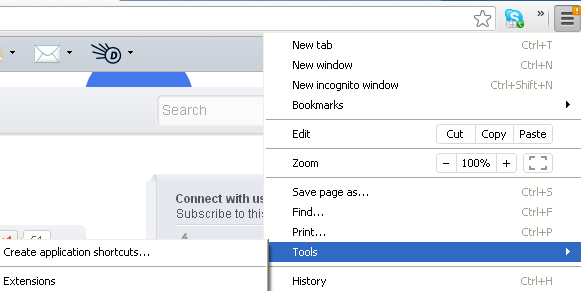
    Google Drive is fostering innovations for use. If you want to save a graphic to Google Drive with a single click of the mouse, it is possible with the Save to Google Drive extension for the Chrome web browser.  To add the extension, go to the  Customize and Control Google Chrome at the far right of the URL menu.

    Select Tools > Extensions from the menu.  In the Search menu, type Save to Google Drive.  You should get a listing of extensions relating to saving and Google Drive.  Select on the Save to Google Drive extension and then click on the Install button.  Once it is installed. you should have the option to Save to Google Drive when you right-click on an image. 
    Notice that I said it was a one-click procedure, not one second in time.   When you click on Save to Google Drive, the web browser is redirected to another window that asks for permission to add the image to your Google Drive account.  Still another window provides an option to rename the image.  When the image is saved, open up the Google Drive account to view it.  If the image you are using is from the web, you will want to adhere to any copyright issues for use.

    If you are using Firefox, you can right-click and save an image to Evernote.  What is different is that Evernote will provide a URL for the image, not the image file.  If Evernote does note appear as a Save option, you can add it to the menu.

    Thursday, November 29, 2012

    Google Drive Update - Share Files Up to 10GB in Size

    A few weeks ago, I noted that Google Drive, which was released in April 2012, is an app (similar to Dropbox) for desktop (Mac & Microsoft Windows) and mobile devices.  According to a Google blog post yesterday, Google now provides the ability to upload files up to 10 GB in size! That places a whole new facet for sharing.  For more information, read the blog at http://gmailblog.blogspot.com/2012/11/gmail-and-drive-new-way-to-send-files.html

    If I am interpreting the information correctly, the recipients would need to have a gmail address.  Notice that Microsoft recently announced changes to SkyDrive.  With resources such as Google Drive, SkyDrive, and Dropbox, it means is that we have more choices for sharing files and syncing  them with the cloud.   Enjoy!


    Saturday, November 24, 2012

    Creating Sparklines with Google Drive Spreadsheets

    In my spare time over the last few days, I have been working on my eBook about data analysis apps.  I discovered that Google Drive Spreadsheet allow users to create Sparklines!  Sparklines allow us to visualize trends within a single spreadsheet cell.  For example, you could show a trend for hemaglobin A1C, blood sugars, any blood chemistry value, or body temperature changes.  There is a great video on the topic by Google Gooru on YouTube at http://www.youtube.com/watch?v=ZDB_TKcHh_0&feature=player_embeddedhttp://www.youtube.com/watch?v=ZDB_TKcHh_0&feature=player_embedded

    Wednesday, July 4, 2012

    Dropbox or Google Drive?

    Just read a nice review comparing Dropbox and Google Drive at http://www.macworld.com/article/1167461/online_storage_face_off_google_drive_vs_dropbox.html

    The bottom line is that they are very comparable.  I have been a Dropbox user for several years. 

    My brother shared a folder so that our extended families (cousins) can share family pictures from the past years.  I plan to select several for use when I create a new genealogy file for my mother's side of the family.

    I have lost touch with my cousin in Finland.  Wish I had thought of sharing family pictures when we were emailing each other.