Showing posts with label Firefox. Show all posts

Friday, October 11, 2013

Firefox Web Browser Bugs and Fixes

Recently the Firefox web browser has been slow to start or not appear - would receive an alert that it was already running.  Of course, the error message would ask me if I wanted help but being too busy, I ignored it until this morning.  The fix was so easy!  All I had to do was to reset Firefox to the factory default.  The restore did not affect the functionality at all and it took less than a minute. 

To reset the browser, to go Help -> Troubleshooting information -> Reset Firefox

So easy :-) ! 

Wednesday, December 12, 2012

Chrome Extension - Saving an Image to Google Drive

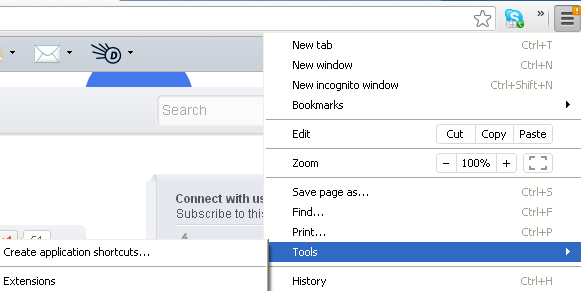
Google Drive is fostering innovations for use. If you want to save a graphic to Google Drive with a single click of the mouse, it is possible with the Save to Google Drive extension for the Chrome web browser.  To add the extension, go to the  Customize and Control Google Chrome at the far right of the URL menu.

Select Tools > Extensions from the menu.  In the Search menu, type Save to Google Drive.  You should get a listing of extensions relating to saving and Google Drive.  Select on the Save to Google Drive extension and then click on the Install button.  Once it is installed. you should have the option to Save to Google Drive when you right-click on an image. 
Notice that I said it was a one-click procedure, not one second in time.   When you click on Save to Google Drive, the web browser is redirected to another window that asks for permission to add the image to your Google Drive account.  Still another window provides an option to rename the image.  When the image is saved, open up the Google Drive account to view it.  If the image you are using is from the web, you will want to adhere to any copyright issues for use.

If you are using Firefox, you can right-click and save an image to Evernote.  What is different is that Evernote will provide a URL for the image, not the image file.  If Evernote does note appear as a Save option, you can add it to the menu.

Friday, September 14, 2012

Disabling Zotero in Firefox - Another Way

Another way to disable Zotero in Firefox is to open Zotero > Click on the gear icon > Preference > unclick sync.  It is easier than disabling the function from the Add-ons menu.

Disabling Zotero in Firefox

As usual, the students push me to learn new things. :-)  This semester, I have asked the GC students to use EndNote citation manager.  It is free through the University and paid for with student technology fee funds.

Prior to this year, we have used Zotero.  The problem is that when we search the digital library and use the export function with Firefox, Zotero "hijacks" the exported citation and will not allow the it to be imported into EndNote.  In the past, I switched to using another  web browser.

With a little research, I found the correction is very simple - just disable Zotero!
In the Firefox web browser, go to Tools > Add-ons.  Select Extensions from the menu >scroll down and click disable by each listing for Zotero.

When you want to use Zotero again, enable it.  Enjoy!

Tuesday, June 19, 2012

Zotero Update

One last update!  Zotero citation manager is now a standalone product!  That is really good news for the few people who  do not want to use Firefox or have problem using Firefox with Zotero.

The standalone installs Zotero into the Word menu when it installs on the computer.  That is especially good for my non-techie students who stumble over two different installs.

For more information, go to http://www.zotero.org/support/3.0

When I was demonstrating Zotero during a webinar last week - the menu did not show up in Word :-(
Yes, it had been working previously.  I found that the problem was because I had not downloaded the latest Firefox web browser.  Afterward a download of the most recent web browser - Zotero was there!!!

Now, if Zotero would only release an iPad app!

Thursday, October 7, 2010

Firefox Readability App

Stephanie discovered a Readability app for Firefox.  At first, I mistakenly thought that it provided readability statistics, but I was wrong!  What it does is to remove distracting information (clutter) from around the article that you are reading.  For more information go to the Readability website and review the video at http://lab.arc90.com/experiments/readability/
 
Once the add-in is installed there will be a blue R at the bottom right corner of the Firefox web browser. Use the link above to drag the Readability "badge" into your Firefox book marks.  When you want to "clean" up the clutter on a busy page, click on Readability on your bookmarks. 

Enjoy!

Wednesday, July 14, 2010

Screen Capture - Firefox Add-on

I learned about this nice free screen capture app from a genealogy listserv!  It is called Screen Capture Elite.  It is an add-on for the Firefox web browser.  From Firefox go to Tools > Add-On > Search for Screen Capture Elite. Install it!  When it is installed (you probably need to restart your web browser) it will appear as a camera icon in the lower right corner of the Firefox web browser.  For more information go to http://www.grizzlyape.com/addons/screen-capture-elite/
Enjoy!