At our ePublishing meeting yesterday, Noland demonstrated the use of Evernote page camera. The feature is available for the iPhone and Android mobile devices. The page camera is an option on the iPhone, but I cannot replicate it on the iPad. The screen shot below is the menu that opens when clicking on the camera icon in an Evernote Note (forgive my typing errors). To use the feature, click on Page Camera and point the mobile device camera at the text or graphic you want to capture. It works similar to taking a photo, except the camera flashes, which makes the graphic or text very clear.
This blog serves two main purposes. It includes tips on learning using technology, especially as it supports the 5th edition of the textbook, Informatics & Nursing: Opportunities and Challenges, that I authored. The blog also includes tips about informatics strategies that add to the scholarship of nursing and teaching/learning excellence.
Showing posts with label Evernote. Show all posts
Saturday, September 14, 2013
Sunday, August 25, 2013
Sharing Large Files with Others
TC Geeks has an article on sharing large files with others at http://www.tcgeeks.com/how-to-share-large-files-in-the-cloud/.
Two of the cloud resources mentioned were Dropbox and Evernote. In the Georgia College School of Nursing, many of the committees use Dropbox for sharing information that has no references to students. The advantage to Dropbox is that it works on all mobile devices as well as Macs and Windows computers. Evernote is an excellent resource. I have written several blogs about the fantastic features available in Evernote.
Two cloud resources that were not mentioned are SkyDrive and Google Drive. One of my research partners and I use SkyDrive for a manuscript we are writing. The reason is that we use EndNote citation software and we want to maintain all of the formatting. SkyDrive allows users to view shared items using a URL; however, the user must sign into SkyDrive to make edits. Google Drive also allows cloud sharing. Like SkyDrive, users can set up preferences to allow others to view or make edits to shared files.
Labels:
cloud computing
,
Dropbox
,
Evernote
,
Google Docs
,
Google Drive
,
Skydrive
Saturday, August 24, 2013
Evernote Reminders and Shortcuts
Evernote, the resource for taking notes continues to evolve adding new features. The Evernote website is http://evernote.com. The resource is also an app for most mobile devices, such as the iPad, iPhone, and Android phone. When you add notes and media, they are automatically synced to your Evernote cloud site. There are two new features for Evernote, reminders and shortcuts.
When you open a file, for instance the notes that I took at the Summer Institute of Nursing Informatics (SINI) last July, there is a menu at the bottom right of the notes page with several icons. The first icon is the looks like an alarm clock. When you click on it, a pop-up menu appears with:
There are two other icons. One is a shortcut to Skitch and the other allows for sharing with:
When you open a file, for instance the notes that I took at the Summer Institute of Nursing Informatics (SINI) last July, there is a menu at the bottom right of the notes page with several icons. The first icon is the looks like an alarm clock. When you click on it, a pop-up menu appears with:
- Mark as done
- Clear reminder
- Change date
- Remove date
There are two other icons. One is a shortcut to Skitch and the other allows for sharing with:
- Message
- Copy link
Labels:
Evernote
,
Evernote Reminders
,
Evernote Shortcuts
Thursday, August 15, 2013
Evernote Clearly
Evernote has a new feature - Evernote Clearly. You can view additional information about the web browser add-in at http://evernote.com/clearly/guide/ . It is available for Firefox, Chrome, and Opera web browsers. When you click on the Evernote Clearly lamp icon, a menu opens up on the side of the webpage. It includes functions for clipping, highlighting, changing the color theme for the page and printing.
What makes the add-in very nice is that ads and other distractions are removed from the webpage, making it easier to read the text. I downloaded it for Firefox and plan to do the same for Chrome.
Labels:
Chrome add-in
,
Evernote
,
Evernote Clearly
,
Firefox add-in
,
Opera add-in
Wednesday, July 31, 2013
Evernote - Creating a Table of Contents
When I attended the Summer Institute of Nursing Informatics a couple of weeks ago, I used Evernote to take notes on all of the sessions. I had taken my Bluetooth keyboard with me and it turned out to be very helpful the night I forgot to charge the iPad. I was able to use my iPhone and the keyboard.
One way to organize a group of notes, such as with notes on multiple educational session, in Evernote is to create a table of contents. A YouTube video demonstrates how. In essence, you create a note titled Table of Contents and then copy and paste hyperlinks of the related notes. View the video below to learn more.
PS - The process of creating a table of contents can be used with other apps, such as a word processing or spreadsheet document.
Labels:
Evernote
,
Table of Contents
Sunday, March 3, 2013
Evernote Hack Compromises User Information
The hacking criminal business is thriving these days. Hackers are attacking many sites including one of my favorites, Evernote. If you use Evernote, but have not been contacted this week by Evernote, your information probably was not compromised. However, many user account information was stolen. If you are an Evernote user, go ahead and login. You will probably be alerted to change your password.
CNN has more information about the hack at http://www.cnn.com/2013/03/02/business/evernote-hacked/index.html?hpt=hp_t3
CNN reports that user names, email addresses, and encrypted passwords were stolen. My wish is that the cyber criminals would use their knowledge to get a "real" job working to support the web and my use of it, rather than to destroy it.
Labels:
Black hackers
,
Cyber criminals
,
Evernote
,
Hacking
Thursday, December 20, 2012
eHighlighter - A Research Productivity Tool in the Evernote Trunk
I am multitasking - reading an eBook on databases and researching the Evernote Trunk at the same time. One of the apps in the Trunk is eHighlighter. I could not find it in the Apple App store with the search tool (that has happened on several occasions) so I searched for it on the web and went into the "back" door of the Apple app store. Go to https://itunes.apple.com/app/ehighlighter/id552675073?ls=1&mt=8
eHighlighter has a short tutorial after you create a login and password and open the app. When working on a research project you would scan the book barcode with the iPad or iPhone camera. The app grabs the textbook citation metadata and prompts you to create a folder for it.
Instead of taking notes, you use the mobile device camera to take a photo of the page. You then used your finger to highlight the text you want to save. You are prompted to note a page number. The app then transcribes photo data into text for you to view and edit.
eHighlighter allows you to save your notes to Evernote, Dropbox, or email. A YouTube video demonstrating the app is noted below.
Labels:
citations
,
Dropbox
,
email
,
Evernote
,
Evernote Trunk
,
Mobile apps
Evernote 5.0- A Free Remember Everything App for Desktop and Mobile Devices
I read an article, Evernote 5.0 for Mac Improves an Already Indispensable Service, at http://www.macworld.com/article/2019709/review-evernote-5-0-for-mac-improves-an-already-indispensable-service.html this morning. Afterwards, I opened Evernote on the Mac and iPad. The focus for the app experience is "Remember Everything." The look is different (I don't use it as often as I should/could). I did not know that there were software, hardware, and other services that using Evernote as their hub (Trunk in Evernote). I also did not realize that Evernote had acquired some of the apps. Examples include:
- Skitch - for screen capturing and annotation
- Hello - an app that helps you remember people (I REALLY need to use this app!)
- Penultimate - a $0.99 handwriting app that allows you to take notes and sketch with the iPad
![]() |
| Evernote Screenshot |
- Web Clipper is a screenshot program that works with different web browsers. What makes it unique is the way it in integrated with Evernote
- Evernote Food is a free app for your food experiences (recipes, photos, notes, etc.)
- Evernote Clearly an app for the web browser that facilitates reading web pages, blogs, etc.Similar to Reader where the "distractions" are removed, but it allows you to save clips to Evernote
- Evernote Peek an app that allows you to create study materials by opening and closing the iPad cover. It is similar to creating flash cards with right and wrong answers.
Labels:
Evernote
,
iPad
,
Mac
,
Mobile apps
Wednesday, December 12, 2012
Chrome Extension - Saving an Image to Google Drive
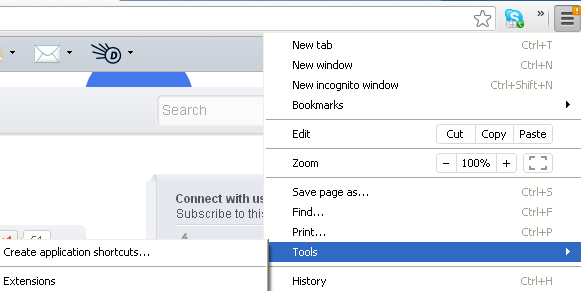
Google Drive is fostering innovations for use. If you want to save a graphic to Google Drive with a single click of the mouse, it is possible with the Save to Google Drive extension for the Chrome web browser. To add the extension, go to the Customize and Control Google Chrome at the far right of the URL menu.
Select Tools > Extensions from the menu. In the Search menu, type Save to Google Drive. You should get a listing of extensions relating to saving and Google Drive. Select on the Save to Google Drive extension and then click on the Install button. Once it is installed. you should have the option to Save to Google Drive when you right-click on an image.
Notice that I said it was a one-click procedure, not one second in time. When you click on Save to Google Drive, the web browser is redirected to another window that asks for permission to add the image to your Google Drive account. Still another window provides an option to rename the image. When the image is saved, open up the Google Drive account to view it. If the image you are using is from the web, you will want to adhere to any copyright issues for use.
If you are using Firefox, you can right-click and save an image to Evernote. What is different is that Evernote will provide a URL for the image, not the image file. If Evernote does note appear as a Save option, you can add it to the menu.
Labels:
Chrome
,
Chrome Extension
,
Evernote
,
Firefox
,
Google Drive
,
Save Image
,
Save Image to Google Drive
Friday, December 23, 2011
Skitch for Evernote
Learned about a new app, Skitch, that works with Evernote yesterday. It is free for the iPad from the iTunes store. To learn more, go to http://skitch.com/
Skitch allows you to annotate media. It is really easy to use. When you are finished, simply save it to Evernote.
Labels:
annotation software
,
Evernote
,
Skitch
Subscribe to:
Posts
(
Atom
)