Showing posts with label Chrome. Show all posts

Saturday, October 5, 2013

Google Chromebook Screenshots

Now that I have mastered how to print with the Google Chromebook, the next task was how to get screenshots.  I use that feature very frequently.  The function keys are not marked with an F number on the Chromebook.  Instead there are icons.  F5 is the fifth key to the right of the escape key.  The F5 function key looks like the image below.

To capture an entire window, click the Ctrl + F5 key above.  A window will open on the bottom right stating that a screenshot was taken and click to view.

To capture a part of a window, click the Ctrl + Shift + F5.  The cross-hair was appear.  Drag to capture the part of the screen you want to capture.  Once again, a window will open verifying the capture and the option to view.

Wednesday, December 12, 2012

Chrome Extension - Saving an Image to Google Drive

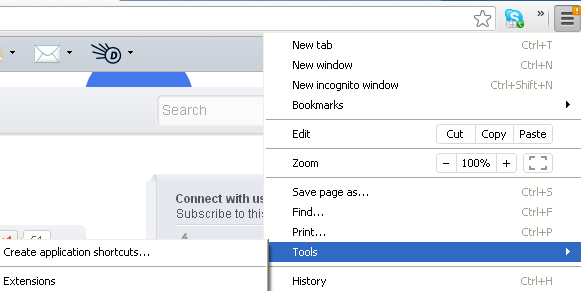
Google Drive is fostering innovations for use. If you want to save a graphic to Google Drive with a single click of the mouse, it is possible with the Save to Google Drive extension for the Chrome web browser.  To add the extension, go to the  Customize and Control Google Chrome at the far right of the URL menu.

Select Tools > Extensions from the menu.  In the Search menu, type Save to Google Drive.  You should get a listing of extensions relating to saving and Google Drive.  Select on the Save to Google Drive extension and then click on the Install button.  Once it is installed. you should have the option to Save to Google Drive when you right-click on an image. 
Notice that I said it was a one-click procedure, not one second in time.   When you click on Save to Google Drive, the web browser is redirected to another window that asks for permission to add the image to your Google Drive account.  Still another window provides an option to rename the image.  When the image is saved, open up the Google Drive account to view it.  If the image you are using is from the web, you will want to adhere to any copyright issues for use.

If you are using Firefox, you can right-click and save an image to Evernote.  What is different is that Evernote will provide a URL for the image, not the image file.  If Evernote does note appear as a Save option, you can add it to the menu.

Wednesday, October 24, 2012

Google Drive - an Updated Version of Google Docs

As you probably know, Google Docs is now Google Drive.  If you are using the Chrome web browser, you can get Google Docs, Spreadsheet, and Presentation from the Chrome Web Store.  When you open a new Chrome tab, the apps will appear.  That means you can access your Google Drive with a single mouse click.  I added the three apps, but Presentation is not visible (Chrome told me that I had added it).  That is not really a problem, because when you open a new Google Doc, you still have a choice of the document type.

Another new feature is that Google Drive is a free app for the Android and Apple iOS devices. So, similar to Evernote, you can easily access any of the documents in Google Drive from your mobile devices.

We discussed Google office apps in the 4th edition of the Informatics and Nursing textbook.  That information is a bit dated now. The short video below provides an overview on Google Drive.